You do not need a cinema camera to make videos that look and sound good. The iPhone in your pocket is already capable, and with a few affordable upgrades it can carry a whole channel. This is the companion guide to my video on filming yourself with just an iPhone. It covers the camera approach, lighting, audio, stabilization, and the gear that makes the biggest difference, plus what you can skip.
Start with the camera you already have
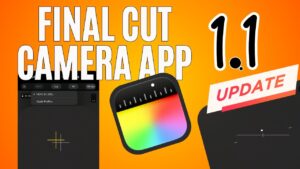
The iPhone shoots clean, sharp video out of the box. The biggest wins come from how you use it, not from buying a new phone. Shoot in the highest quality your phone supports, lock your exposure and focus so the image does not drift while you talk, and frame yourself with a little headroom and some space to one side. For more manual control, the free Final Cut Camera app from Apple exposes settings the stock camera hides.
Lighting: soft and in front of you
Good light is the cheapest way to look more professional. A window during the day is a great free key light. Face it, and do not let it sit behind you. When you need more control or you are filming at night, a small LED panel fills in nicely, and a simple diffuser softens the light so it is flattering rather than harsh. In the video I use a budget DIY diffuser made from a shower curtain, which sounds silly and works surprisingly well.
Audio: the upgrade people notice first
Viewers forgive average video far more than they forgive bad audio. The fastest fix is getting a microphone close to your mouth. A wired lavalier with a long cord is the cheapest option and sounds great for talking-head video. If you want freedom to move, a small wireless mic with internal recording is the better choice. Just match the adapter to your phone: older iPhones use a TRRS to Lightning adapter, newer ones use TRRS to USB-C.
Stabilization and mounting
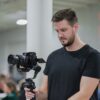
A steady shot reads as intentional. For talking to camera, a simple tripod with a phone mount is all you need. Magnetic phone mounts make it fast to reposition, and a small phone rig adds handles and cold-shoe points for a light or a mic as your setup grows.
Filters for shooting outside
Bright daylight can force your phone into a very fast shutter, which makes motion look stuttery. A neutral density filter cuts the light so you can keep a natural shutter and a softer, more cinematic look. A magnetic adapter makes it quick to add or remove the filter on the fly.
Recording, storage, and framing yourself
If you record long takes or high-quality formats, a USB-C hub lets newer iPhones record straight to an external SSD, which saves phone storage. Framing yourself with the rear camera is the classic problem. An Apple Watch can act as a remote viewfinder and shutter, and a small selfie mirror clipped near the lens lets you see the frame while you film.
Editing apps
You can edit the whole thing on the phone. CapCut and Splice are fast and friendly for mobile editing. When you want more control, DaVinci Resolve is free on desktop and is what I grade in, and Final Cut Pro and Adobe Premiere Rush are solid options depending on your platform.
Gear in this video
Here is the kit from the video, with my own short notes. Some of these are affiliate links, so I may earn a small commission at no extra cost to you. See the disclosure at the top of this article. These are items I actually use.
Audio
- DJI Mic 2, a wireless mic with internal recording. Amazon
- Rode Wireless Pro, a step-up wireless system. Amazon
- Budget lavalier microphone, wired with a long cord. Amazon
- TRRS to Lightning adapter, for older iPhones. Amazon
- TRRS to USB-C adapter, for newer iPhones. Amazon
Lighting
Stabilization and mounting
Filters
Recording and framing
- USB-C hub for recording to an external SSD. Amazon
- Apple Watch, for remote recording and framing. Amazon
- Selfie mirror, for framing with the rear camera. Amazon
FAQ
Do I need an external mic for iPhone video? It is the single biggest upgrade. The built-in mic is fine in a quiet room up close, but a wired lavalier or a small wireless mic will make you sound far more professional anywhere else.
What is the cheapest way to light myself? A window during the day, facing you. After that, one small LED panel with a simple diffuser covers most situations.
How do I frame myself when the screen faces away? Use an Apple Watch as a remote viewfinder, or clip a small selfie mirror near the lens so you can see the shot.
Can I edit everything on my phone? Yes. CapCut and Splice handle mobile editing well. Move to DaVinci Resolve, Final Cut Pro, or Premiere Rush when you want more control.
Keep going
That is the setup. Start with audio and light, then add the rest as you grow. For my current full kit with where to buy, see the Gear page. And if you want the full walkthrough, watch the video and subscribe on YouTube.